
If your once-speedy computer has started dragging its feet, you’re not alone. Over time, it’s normal for performance to dip, even if nothing is visibly wrong. But the good news is that slowdowns usually have simple causes—and simple fixes. This guide will break down the most common reasons your PC or Mac might be slowing down and show you exactly how to bring it back to life.
1. Why Does My Computer Get Slower Over Time?
Software buildup, cluttered storage, background apps, and aging hardware all contribute to long-term slowdowns.
The longer you use your computer, the more “digital clutter” it accumulates. Programs you’ve installed over the years may continue running in the background. Temporary files and cached data pile up behind the scenes. New software updates can also require more system resources than your device was built to handle. On top of that, mechanical hard drives (HDDs) can start to wear down with heavy use, causing slower read and write times. All these small factors add up, making even simple tasks feel sluggish.
2. Can Too Many Programs Really Slow Down My PC?
Yes, having lots of programs running—especially during startup—can take a serious toll on your system’s memory and speed.
Some programs sneak into your startup list when you install them, which means they automatically launch every time you power on your computer. That slows down your boot-up and leaves fewer resources for the apps you actually want to use.
To check and manage startup apps:
- On Windows, open Task Manager (Ctrl + Shift + Esc), go to the “Startup” tab, and disable anything you don’t need.
- On a Mac, go to System Settings > Users & Groups > Login Items.
3. Does Storage Space Affect Performance?
Yes, when your hard drive gets full, it limits your computer’s ability to store temporary files and slows everything down.
Your operating system uses available storage space to handle background tasks like caching and virtual memory. When there’s little room left, the system has to work harder to perform basic actions. This is especially true for traditional hard drives, but even solid-state drives can lose speed when pushed to capacity.
Here’s what helps:
- Keep at least 15 to 20 percent of your storage free.
- Use built-in tools like Disk Cleanup (Windows) or Storage Management (Mac) to clear space.
- Move large files like videos or photos to an external drive or cloud storage if needed.
4. Can Malware or Unwanted Software Cause Slowness?
Absolutely. Malware, spyware, and junk programs often run quietly in the background and eat up valuable system resources.
Not all threats are obvious. Some malicious software stays hidden while running background processes that slow your computer down. Even legitimate programs, like pre-installed trialware or browser toolbars, can waste memory and processor power.
To clean things up:
- Use trusted antivirus programs like Windows Defender, Malwarebytes, or Bitdefender Free Edition.
- Uninstall software you don’t use.
- Avoid downloading files or apps from unverified sources.

5. Is My Hardware Just Too Old?
Sometimes, your computer’s hardware just can’t keep up with modern software, especially if it’s more than five years old.
If your computer still uses a spinning hard drive or has less than 8GB of RAM, it may simply be underpowered for today’s apps and web content. The CPU might struggle with multitasking, or your RAM may max out quickly when you open a few browser tabs or apps at once.
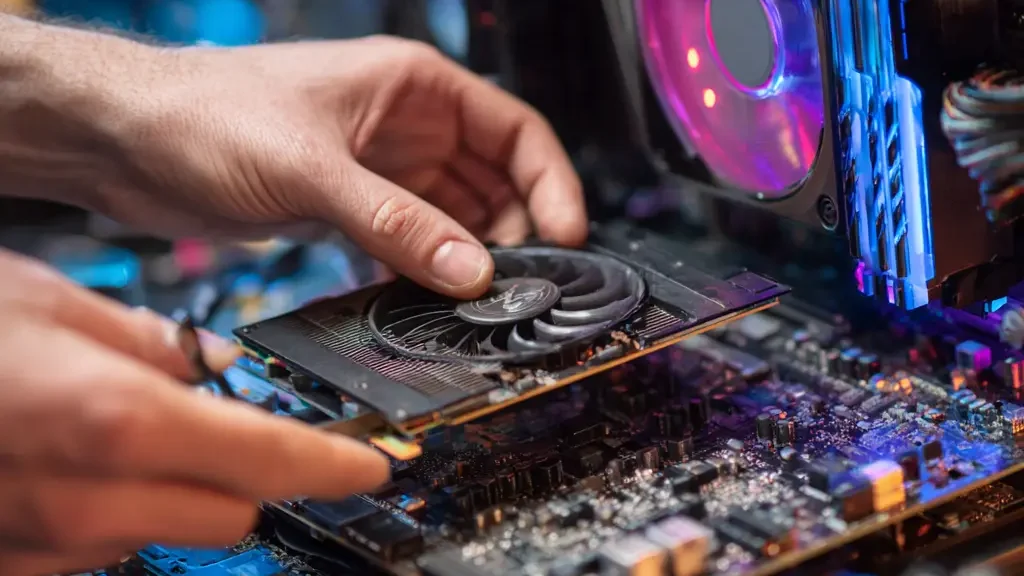
You don’t always need a new computer. In many cases, upgrading to a solid-state drive or adding more RAM can make a huge difference.
6. What Are the Best Ways to Speed Up My Slow Computer?
The most effective fixes include cleaning up storage, removing unused startup apps, scanning for malware, and upgrading key hardware.
If your computer is feeling slow, try this list of practical solutions:
- Uninstall programs you no longer need
- Run Disk Cleanup (Windows) or Manage Storage (Mac)
- Turn off background apps you don’t use often
- Use CCleaner or a similar tool to clear out temporary files
- Run a full antivirus and anti-malware scan
- Upgrade your hard drive to an SSD and install more RAM if your system allows
Do this once every couple of months, and your computer will stay in much better shape over time.
Conclusion: Can You Keep Your Computer Fast Long-Term?
Yes, with regular maintenance and a few smart upgrades, you can keep your computer fast for years to come.
You don’t have to accept a slow computer as inevitable. With some basic maintenance habits—like managing startup apps, cleaning up storage, and watching out for malware—you can keep your system running smoothly. And when the time comes, a few affordable upgrades can give your machine a whole new life without needing to buy a new one.
FAQ: Computer Slowdown Fixes
How do I check what’s slowing down my computer?
Use Task Manager (Windows) or Activity Monitor (Mac) to identify apps that are using the most CPU, RAM, or disk activity.
What’s the easiest fix for a slow PC?
Start by uninstalling apps you don’t use, clearing temp files, and disabling unnecessary startup programs.
Does reinstalling the operating system help?
Yes, a clean install can remove years of accumulated software clutter and restore speed.
Is it better to upgrade RAM or install an SSD?
If your system still uses a traditional hard drive, switching to an SSD will usually give you a bigger speed boost than adding RAM.
Need Expert IT Support? Contact ITGuys Today!
IT Support – Cloud Services & Email Migration – Network Setup